Sell and redeem a voucher
- Availability
- Beta
Use vouchers when customers buy value or a ticket product that can be redeemed later.
Voucher configuration is split between two systems. KORONA.studio owns the commercial configuration; the KORONA Event back office owns the customer-facing presentation and publication in the shop.
Before you start
Confirm with the person who manages KORONA.studio:
- whether the voucher is a value voucher or a single-purpose voucher
- its value, validity, and eligible products or offers
- whether it is sold online, at the POS, or both
- the product, price, tax, voucher number rules, and POS behavior
- which payment and confirmation emails should be used
The KORONA.studio integration must be active and synchronized. You need Studio access to change voucher type, value, validity, or eligibility, and back-office access to edit the customer-facing content.
Choose the voucher configuration in KORONA.studio
Create and maintain the voucher configuration in KORONA.studio. KORONA Event imports it when the voucher package is active for the KORONA account.
| Configuration | Benefit and use |
|---|---|
| Value voucher | Applies a monetary balance against an order total, up to the remaining voucher value. Useful for flexible gifts. |
| Single-purpose voucher | Uses a fixed tax rate. Product or tag restrictions in Studio limit which product can be selected in KORONA Event. |
Choose the type based on what the customer is promised. Value vouchers pay the remaining order amount without changing the tax on the purchased products. Single-purpose vouchers use the tax configuration recorded when the voucher was issued.
For those accounts, a single-purpose voucher with neither restriction can cover the remaining order total, including deposit amounts, up to its available balance. It retains its fixed tax treatment. With mixed tax rates, a fully paid receipt can therefore still show offsetting net and tax amounts.
A configured tag with no matching products does not remove the restriction. Correct the product or tag assignment in KORONA.studio and synchronize before applying the voucher again. No additional eligibility setting is needed in KORONA Event. Product selection in KORONA Event does not guarantee the same product restriction is enforced by the native KORONA POS.
Vouchers use the order in which they were applied. Each subsequent voucher covers only the amount remaining after earlier vouchers. Removing a voucher and applying it again places it after the vouchers already applied. Canceling a completed redemption restores the redeemed balance with a separate credit and reverses the original voucher tax amounts.
Configure the commercial fields in Studio, including value or eligible product, validity, price and tax setup, and POS behavior. Do not try to correct these fields in the KORONA Event back office.
Choose a fixed or customer-chosen amount
For a voucher with a fixed amount, the shop uses that amount. To let customers choose the value, use a voucher definition without a fixed amount in KORONA.studio. Leave the fixed amount unset; you do not need to enter an explicit €0 amount. See the KORONA.voucher manual for Studio configuration.
A voucher without a fixed amount is not a free voucher. Customers must enter a positive Voucher amount in the online shop before adding it to the cart. The amount applies to each voucher: two vouchers at €25 cost €50. Customers can edit the amount from the cart before checkout.
After saving in Studio, wait for the next synchronization or open Admin > Integrations and run Synchronize when an immediate import is required. See Connect KORONA.studio.
Edit the voucher presentation in the back office
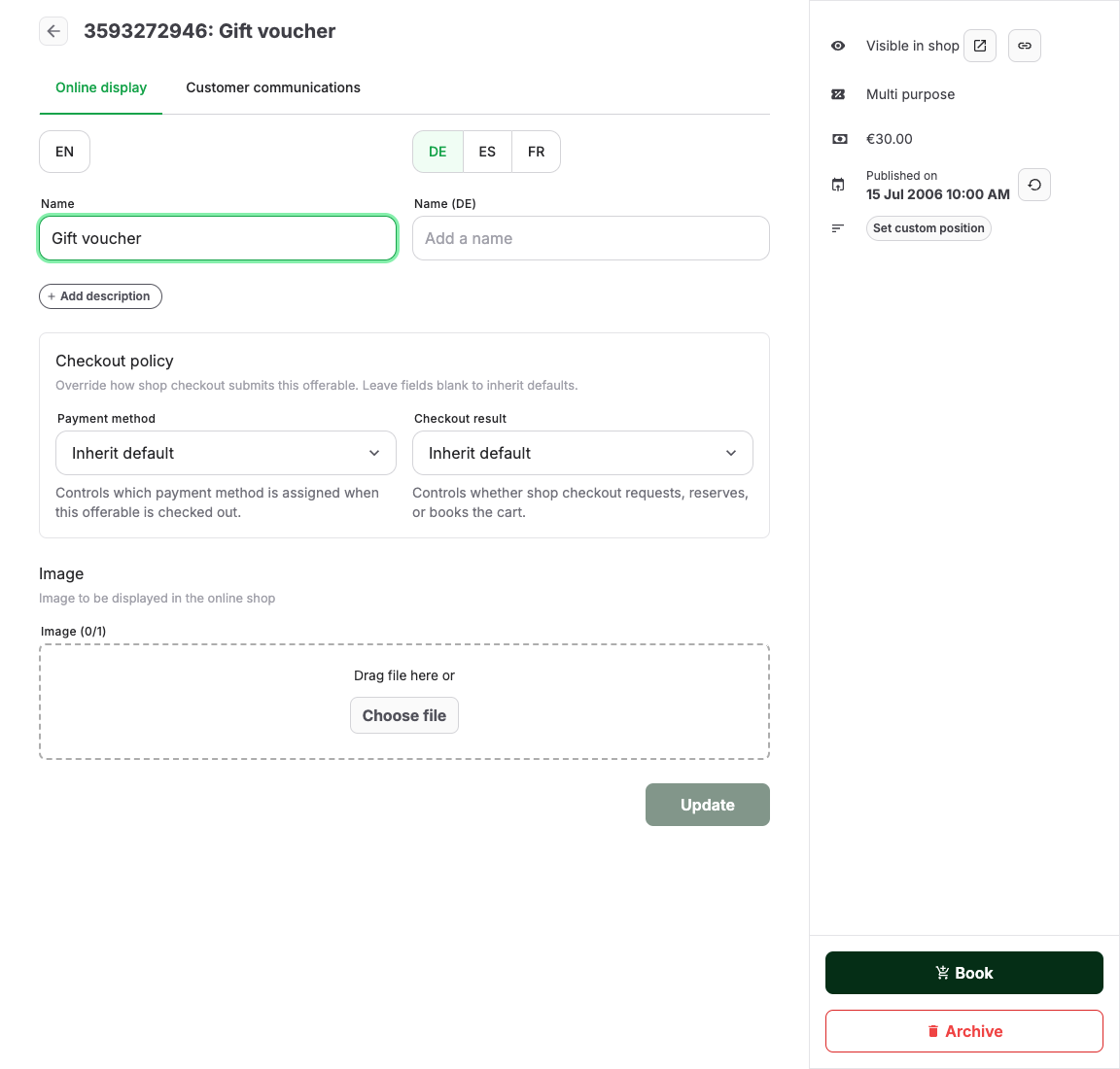
- In the back office, open Services > Vouchers.
- Open the voucher configuration imported from KORONA.studio.
- Enter the customer-facing Name and Description.
- Add an image if the shop should show one.
- Configure checkout policy only when the voucher should behave differently from the shop default.
- Open Customer communications to add customer information, attachments, or scheduled emails when needed.
- Save the voucher.
Review the canonical checkout policy options before overriding the shop default.
Make the voucher sellable
Publish the voucher only after checking:
- the imported type, price, value, validity, and eligible products match KORONA.studio
- you have chosen the sales channels and shop page or POS offer list where customers should find the voucher
- the voucher is not archived or hidden unintentionally
- its customer-facing name, description, image, communication, and confirmation output are clear
The voucher's presence at a KORONA POS depends on the Studio/POS setup. Its presence in the online shop depends on its imported state, back-office publishing, and the shop page or page-builder offer list.
Add the voucher to the shop's voucher listing
Publishing a voucher makes its detail page available, but does not add it to a manually selected list. A voucher can be available through its direct link while missing from the page customers reach through the shop menu. This also applies to vouchers without a fixed amount.
For shops using the Page Builder:
- Open Shops, select your shop, and open Page Builder.
- Edit the page where customers browse vouchers and open its Offer List block.
- For Manual selection, add the voucher to the selected offers. For an Automatic list, include Vouchers in Types and adjust tags and filters so the voucher is included.
- Save the page in the classic editor, or use Publish changes in the visual editor. Enable the page and show it in navigation if customers should reach it from the shop menu.
For detailed controls and the Pages tab used by shops without the Page Builder, see Customize shop page content and ordering.
Buy a voucher with a chosen amount
Customers open the voucher's detail page, enter a positive Voucher amount, choose the quantity, and select Add to cart. In the cart, they can use the voucher's edit action to change the amount or quantity, then select Update cart before continuing to checkout.
Use a voucher bought at a KORONA POS
A voucher bought at a KORONA POS can be used in KORONA Event after the completed sale receipt has been received and the voucher is available from KORONA.studio. The sale does not need a linked KORONA Event order. The voucher configuration must already be synchronized, and the voucher must be active, unlocked, and valid for the intended redemption.
If KORONA.studio has not made the new voucher available yet, availability in KORONA Event depends on a later synchronization.
With KORONA delivery-note processing enabled, a delivery note linked to a KORONA Event order can also make a voucher available. KORONA.studio must provide the referenced voucher transaction and voucher, and the voucher configuration must already be synchronized. The usable balance comes from the voucher transactions recorded in KORONA.studio; the delivery-note total does not establish a voucher balance.
Test purchase and redemption
- Buy the voucher through the same channel customers will use.
- Confirm the order, payment state, and voucher code or document.
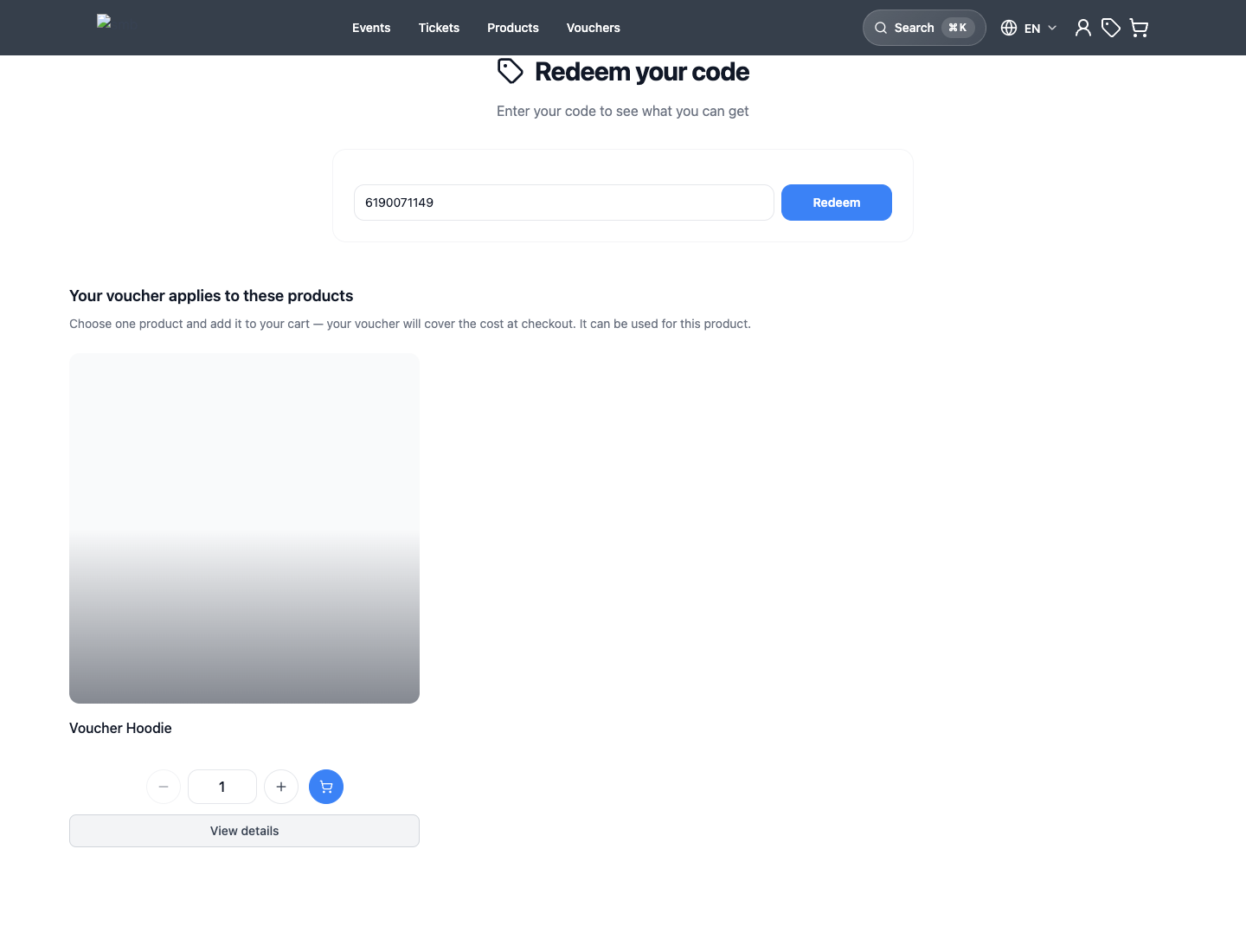
- Open the public shop redemption path.
- Enter the voucher code.
- For a product-bound voucher, select the redeemable offer, date, time, and quantity. For a voucher without a product restriction, add the desired items and enter the voucher code in the cart.
- Confirm that the voucher value or entitlement is applied before checkout is completed.
Recover when an applied voucher cannot be used
The cart shows a warning if an applied voucher can no longer cover the order. Remove that voucher before continuing checkout. For a product-bound voucher, add an eligible product before applying it again. If another voucher already pays the full amount, leave the unused voucher removed and use it for a later purchase.
Expected result
The customer can buy a voucher, receive the correct voucher output, enter the code during redemption, and see the expected value or entitlement applied to the new order.
Troubleshooting
| Problem | What to check |
|---|---|
| Voucher is missing from the shop | Sales channel, page builder offer list, publishing, hidden state, price, and voucher page activation. |
| Voucher opens by direct link but is missing from the voucher listing | Add it to the page's manual selection, or adjust the automatic list's types, tags, and filters. Save or publish the page changes. |
| Customers cannot choose a voucher amount | Use a voucher definition without a fixed amount in KORONA.studio, synchronize it, and include that voucher in the shop listing instead of a fixed-value voucher. |
| Voucher code is not accepted | Code spelling, expiration, redeemed state, payment state of the original order, and whether the voucher belongs to this shop. |
| Redemption adds the wrong item | Eligible product in KORONA.studio, redeemable offer, required options, date/time selection, and cart contents before applying the code. |
| Voucher value is not deducted | Voucher state, value, selected offer eligibility, payment failure, duplicate cart rows, and whether the voucher was already consumed. |
| POS cannot redeem the voucher | KORONA.studio voucher/POS setup, synchronization, voucher recognition, and whether the voucher type is supported at that POS. |