Understand KORONA.studio synchronization
KORONA Event support connects the KORONA.studio ecosystem module before the account is handed over. Use this article to understand which system owns shared data and when synchronized changes become available.
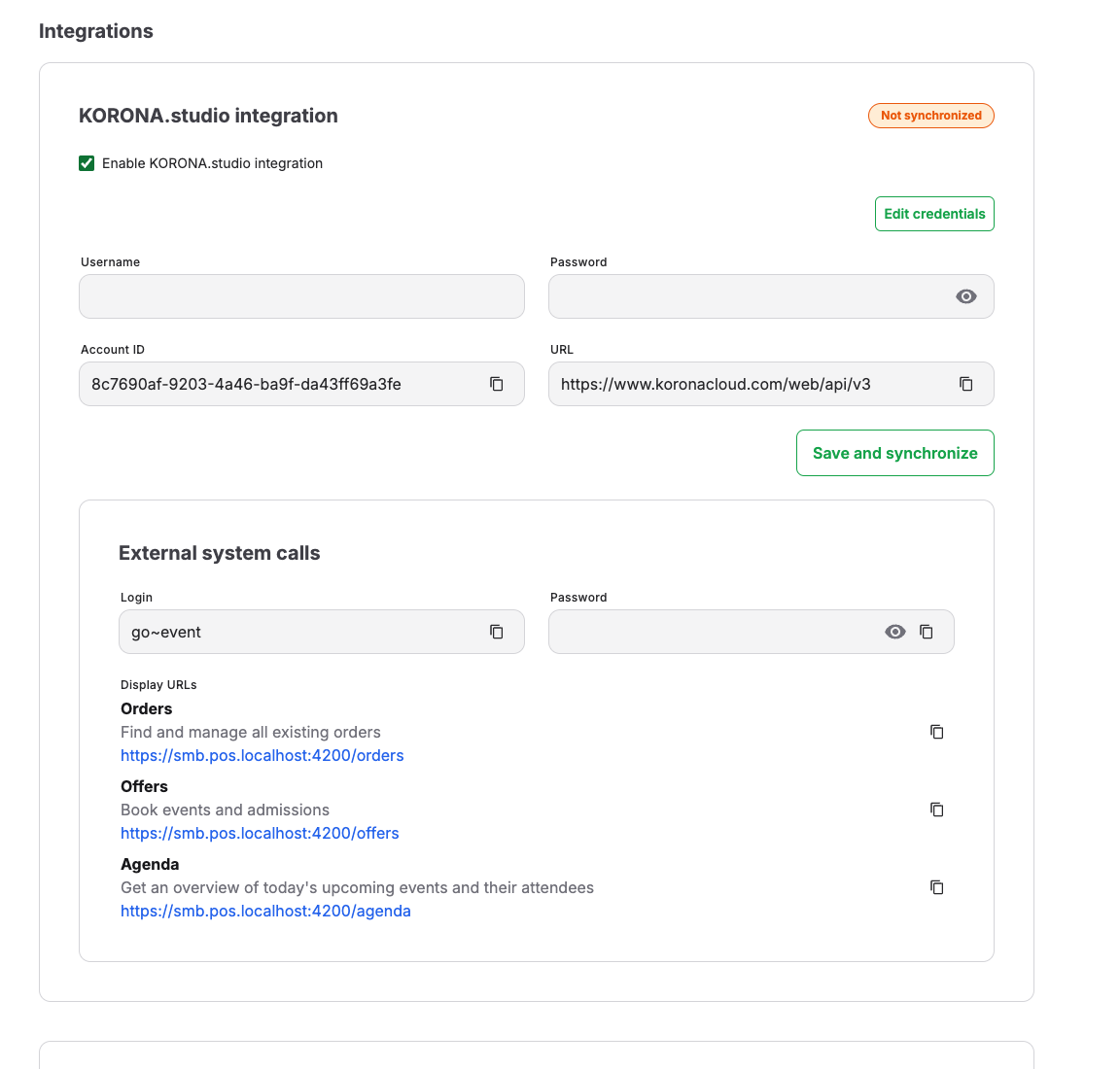
Before you start
Know which KORONA.studio account owns this KORONA Event account's master data. Do not replace the KORONA.studio synchronization credentials or service URLs unless KORONA Event support asks you to. The KORONA POS external-call API key described below is separate and can be replaced through user management.
Find the synchronization status
- In the back office, open Admin > Integrations.
- Find KORONA.studio integration.
- Use Last successful synchronization to see when the most recent import completed.
- If the connection is missing or synchronization fails, contact KORONA Event support. Do not create duplicate master data in KORONA Event while the connection is being repaired.
What synchronizes in each direction
From KORONA.studio into KORONA Event:
- products and their prices
- payment methods, currencies, and sales taxes
- points of sale, cashiers, organizational units, and sectors
- tags, ticket definitions, customer groups, and economic zones
- voucher configurations and vouchers, when the voucher package is active in the KORONA account
- receipts, imported on a recurring schedule
From KORONA Event to KORONA.studio:
- invoices and fiscal delivery notes
- customer records attached to orders, including a company's Leitweg-ID when present
- tags created in KORONA Event
Customer imports also carry a KORONA.studio buyer reference into KORONA Event as the company's Leitweg-ID. KORONA Event-created e-invoices use the value stored on the customer when the invoice is issued; changing it later does not rewrite an existing invoice.
After the first synchronization, imports repeat approximately every 15 minutes and exports run continuously. Temporary failures are retried automatically and can delay updates. Last successful synchronization shows when an import last completed successfully.
Online shop prices during a cart-service outage
If the KORONA cart service is temporarily unavailable, ordinary online bookings can continue using the prices stored in KORONA Event. Automatic discounts that require the unavailable service are not applied. Customers see the local cart total without an outage notice. Existing voucher-owned prices and receipt limits still apply.
An external coupon code must be validated before it can be used. If validation is unavailable, the customer receives an error and can retry later or remove the code to continue at local prices. Locally configured promotion codes remain subject to their normal rules. Completed orders are not repriced automatically when the service recovers.
External system calls
Once this feature is enabled, KORONA Event manages the receipt-cancellation callback for every imported POS profile. When fiscal delivery-note processing is enabled, it also manages the delivery-note-finalization callback. Existing external system calls on a profile remain in place, and KORONA Event does not change their KORONA numbers.
Open Admin > Integrations and find External system calls to review these callbacks. Synchronized means the calls are attached to the imported POS profiles. If a callback shows Needs repair or Not synchronized, select Synchronize and repair. The next successful full KORONA.studio import also repairs the managed callbacks.
The section continues to show the Login, a masked Password, and root Display URLs for Orders, Offers, and Agenda. Accounts with managed external system calls use the stable login KORONA_EVENT; other accounts keep their existing platform login. The masked password identifies the configured API key but cannot reveal its secret.
To configure or replace the password, you need permission to manage users:
- Open Admin > Users and select the dedicated integration user for the KORONA POS connection.
- Under API keys, select Create API key.
- Copy the value from New API key immediately. It is shown only once; store it securely and enter it as Password in KORONA POS. Use the Login and required Display URLs shown under External system calls.
- After the replacement works, select Revoke API key for the old masked key. If a secret was lost before it was stored, create another key; the masked value cannot be recovered.
Publish a saved view as a POS action
Saved views can open a filtered KORONA Event screen from the KORONA POS:
- Open Orders or Events in the back office.
- Apply the filters the cashier should see and save them as a view.
- Select the saved view, open its action menu, and choose Publish as … POS action.
- In KORONA.studio, add the resulting external system call to the applicable POS button layout.
An order view can open Orders, and an event view can open Agenda. Other saved-view and destination combinations cannot be published automatically. To stop offering an action, open the saved view menu and select Unpublish … POS action. Unpublishing deactivates the KORONA.studio call so an existing button cannot silently open a deleted target.
Automatic saved-view publication is available only on accounts with managed external system calls. If the publish action is not shown, use the Orders root Display URL and the current Login under Admin > Integrations, together with the securely stored API key, to configure an Orders action manually in KORONA.studio. A manually configured root action opens Orders without applying a saved view.
Troubleshooting
| Problem | What to check |
|---|---|
| Synchronization fails immediately | Contact KORONA Event support; do not replace the KORONA.studio synchronization credentials or service URLs unless asked. |
| Section shows Not synchronized | Contact KORONA Event support before creating or changing KORONA.studio-owned records locally. |
| Products or prices are outdated | When Last successful synchronization last updated; correct the data in KORONA.studio, then wait for the next import or select Synchronize. |
| A record exists in KORONA.studio but not in KORONA Event | Whether Last successful synchronization advanced after the record changed. |
| A managed callback shows Needs repair | Select Synchronize and repair. If it fails again, record the shown error and contact KORONA Event support. |