Prepare customer emails and tickets before go-live
- Last verified
- Last verified Aug 28, 2026
Use this checklist before publishing a new shop, event series, or ticket type.
Before you start
Prepare:
- sender name and support email
- order confirmation wording
- ticket PDF and wallet pass branding
- legal text that must appear in customer communication
- staff who can resend emails and download documents
Review email templates
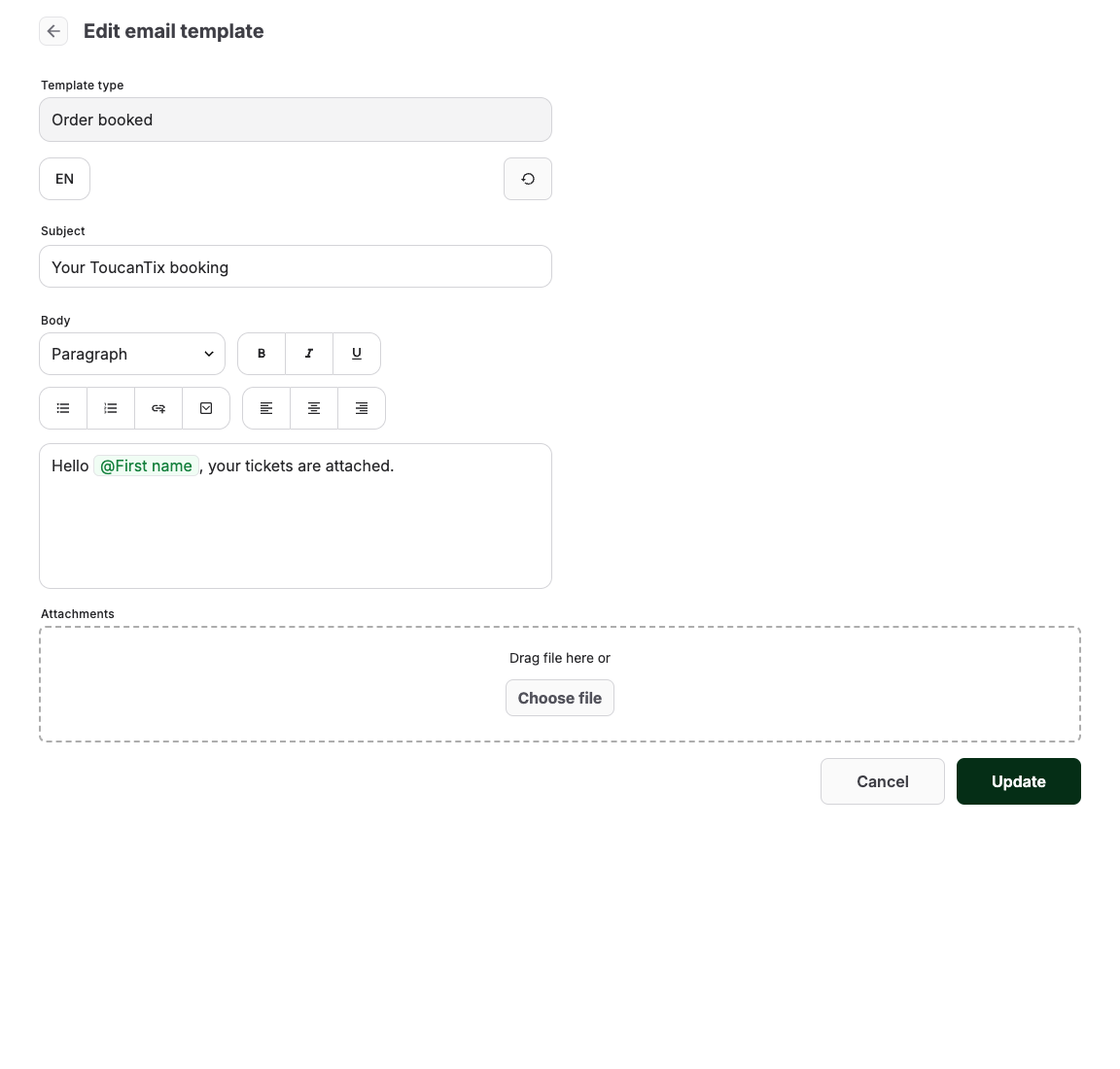
Open Comms > Email Templates and select the template to review.
Check Subject, Body, language variants, variables, and attachments. Keep variables such as customer name, order number, event date, and ticket links in place unless you are replacing them with an approved equivalent.
For link delivery, open Admin > Manage Profile > Ticket delivery and turn off Attach ticket files to customer emails. Confirm that the default Order booked, Order updated, and Order paid templates contain the ticket download page placeholder in every enabled language. A direct PDF placeholder is not sufficient because tickets may still be in preparation when the email arrives. Use direct PDF, Apple Wallet, or Google Wallet placeholders only as secondary format-specific actions.
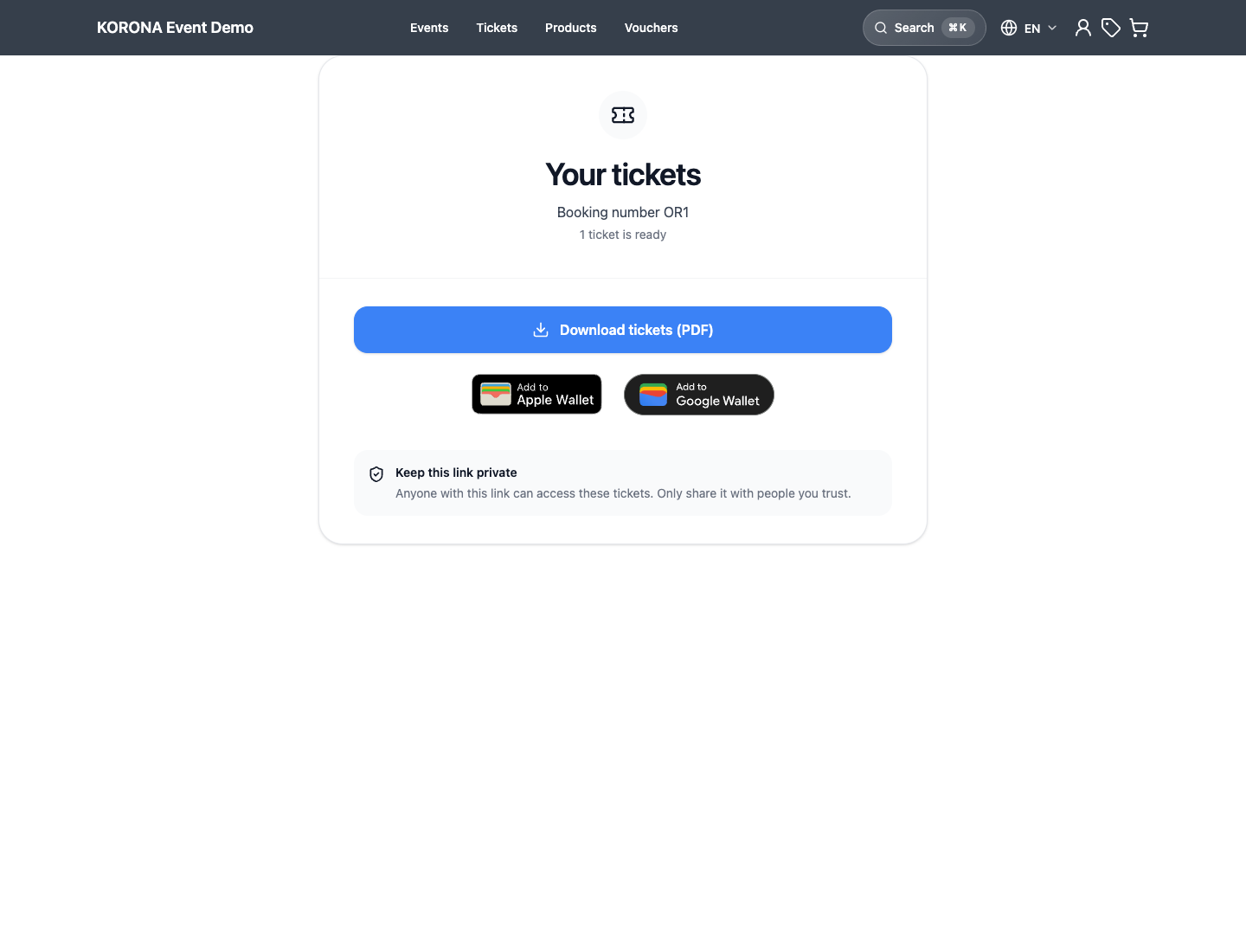
The checkout success page and the private ticket download page offer Apple Wallet and Google Wallet for eligible tickets. Wallet actions require a default wallet pass design; Google Wallet also requires the account’s Google Wallet integration to be configured. Staff with permission to read orders and attendees and unrestricted resource access can use Download ticket in the attendee view to choose an available wallet format.
Choose the attachment policy
Choose the delivery mode for the customer's likely situation:
- Link delivery keeps emails smaller and always opens the current tickets, but the customer needs an internet connection to open the private page and download a ticket.
- Attached ticket files can be opened from the email after they have downloaded, including when connectivity at the venue is poor, but a previously downloaded attachment may not reflect a later ticket update.
The link can be sent while ticket activation is still finishing. In that case, the private page says that the tickets are being prepared, checks again automatically, and keeps all download and wallet actions disabled until the tickets are ready. The customer can also select Check again. A separate follow-up email is still sent when the delayed tickets are ready.
Review ticket and wallet templates
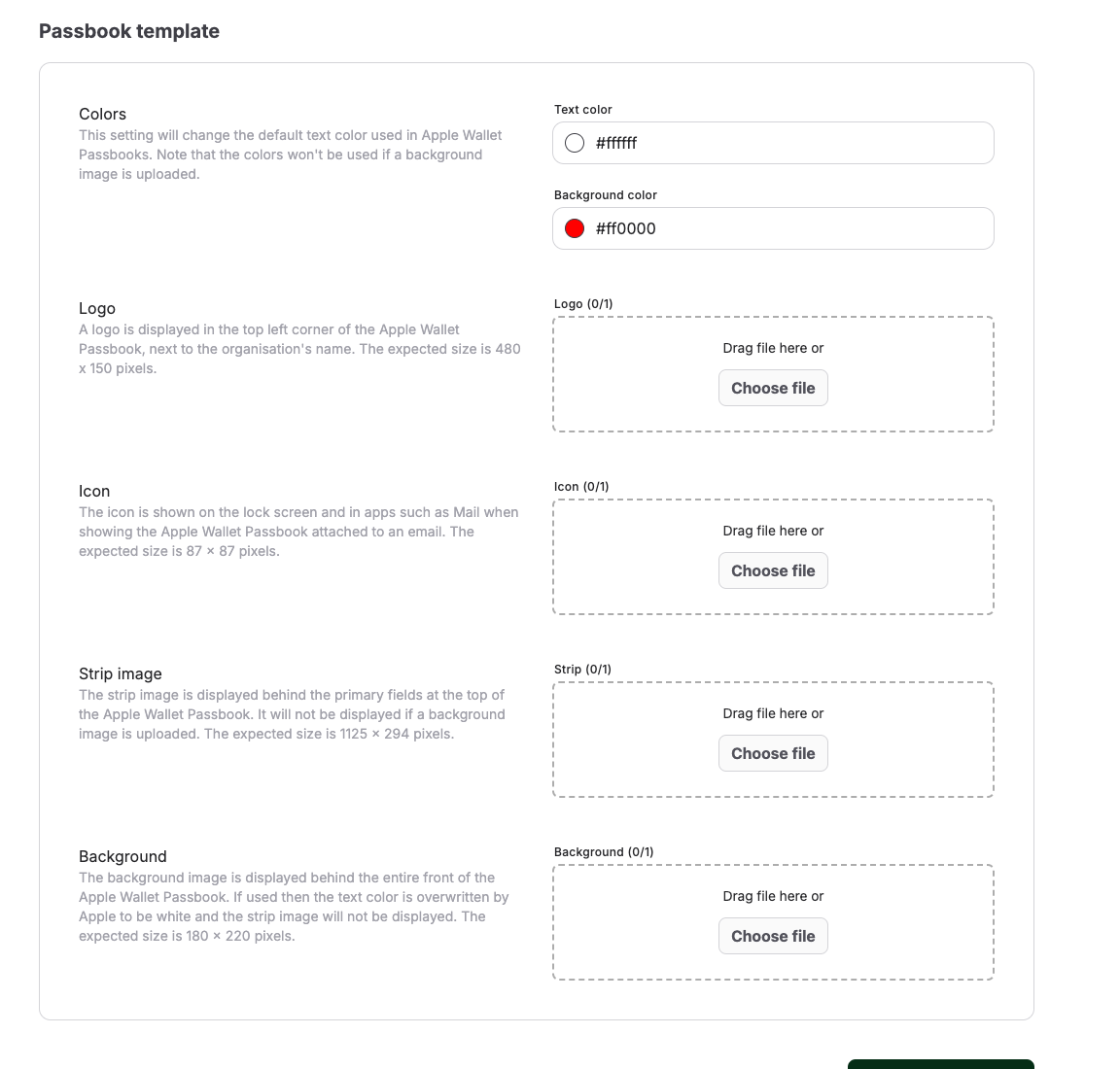
Open Comms > Passbook.
Check:
| Area | What to verify |
|---|---|
| Colors | Foreground and background colors are readable on mobile wallets. |
| Logo | The logo is current and not cropped. |
| Icon | The icon is recognizable at small sizes. |
| Background | The image does not hide ticket details. |
If your account uses editable PDF templates, review the ticket PDF layout as well. Keep QR codes, event name, date, attendee information, and terms readable.
Approve the customer communication
- Review the subject, body, variables, attachments, and enabled language variants for each template the launch uses.
- Review the ticket PDF and wallet pass layouts, keeping ticket identifiers and QR codes unobstructed.
- Confirm which staff roles may edit templates, resend emails, and download customer documents.
- Document the approved secure fallback for a customer who cannot receive an email.
- Complete a test checkout and confirm the order email was sent.
- Open the ticket download page from the email. If it says the tickets are still being prepared, keep the page open until the download actions appear, then download and open the ticket PDF.
- Add the ticket to Apple Wallet and Google Wallet on supported devices, if used.
- Scan the ticket in POS or admissions.
- Use Resend last order email only after confirming the expected links and attachments in the original delivery mode.
Expected result
The approved templates contain the intended wording, translations, variables, attachments, branding, and readable ticket identifiers, and staff know who may edit or resend them.
Troubleshooting
| Problem | What to check |
|---|---|
| Email is missing | Customer email, order History, template status, spam folder, and whether sending failed. |
| Email summary is incorrect | Selected prices and sub-products in the order, their quantities and presentation settings, and whether the email was generated after the latest order change. |
| Ticket PDF or link is missing | Order state, payment state, ticket generation, account ticket-delivery setting, email placeholders, and attendee data. |
| Ticket page stays on preparing | Keep the page online and select Check again. If it remains unavailable, check ticket activation and the follow-up email status in the order History. |
| Variable shows as raw text | Restore the approved variable or reinsert it from the template editor. |
| Wallet pass looks wrong | Passbook colors, logo, icon, background image, and mobile wallet constraints. |
| Resend email has no ticket | Confirm the ticket exists before resending; resending does not create missing documents. |