Send or copy a payment link
- Last verified
- Last verified Aug 25, 2026
Use a payment link when a customer should pay after an order is created in the back office, when a reservation should become a paid booking, or when an order change leaves an additional amount to collect.
The available action depends on order state, invoice state, open amount, and payment provider setup.
Common uses
| Situation | What to do |
|---|---|
| A customer moves to a more expensive date or offer | Complete the order change first. If the finalized change leaves an open amount, collect the difference with the payment link for that open invoice. |
| Staff reserve places and the customer should pay in advance | Create or open the order, choose Online / Pay-by-link as the payment method, and use Initiate payment when the customer is ready to pay. A reservation on its own does not create a payment link. |
| A new back-office order should be paid online | Choose Online / Pay-by-link, add the customer, and use Initiate payment. KORONA Event books the order and sends the initial payment request. |
For a new order paid by link, tickets are not included with the initial payment request. After successful payment, KORONA Event updates the payment state and sends the applicable confirmation and tickets. An existing ticket on an order that is later changed is handled by the order-change workflow.
Before you start
Confirm:
- the customer email address is correct
- the order or invoice still has an open amount
- the order is not canceled, expired, or already fully paid
- the payment provider supports the required payment-link flow
- the customer should receive a link by email, or you only need to copy the link
Open the order
- In the back office, open Sales > Orders.
- Search for the order number or customer name. For a ticket or invoice number, use the global Search box in the sidebar and open the related order.
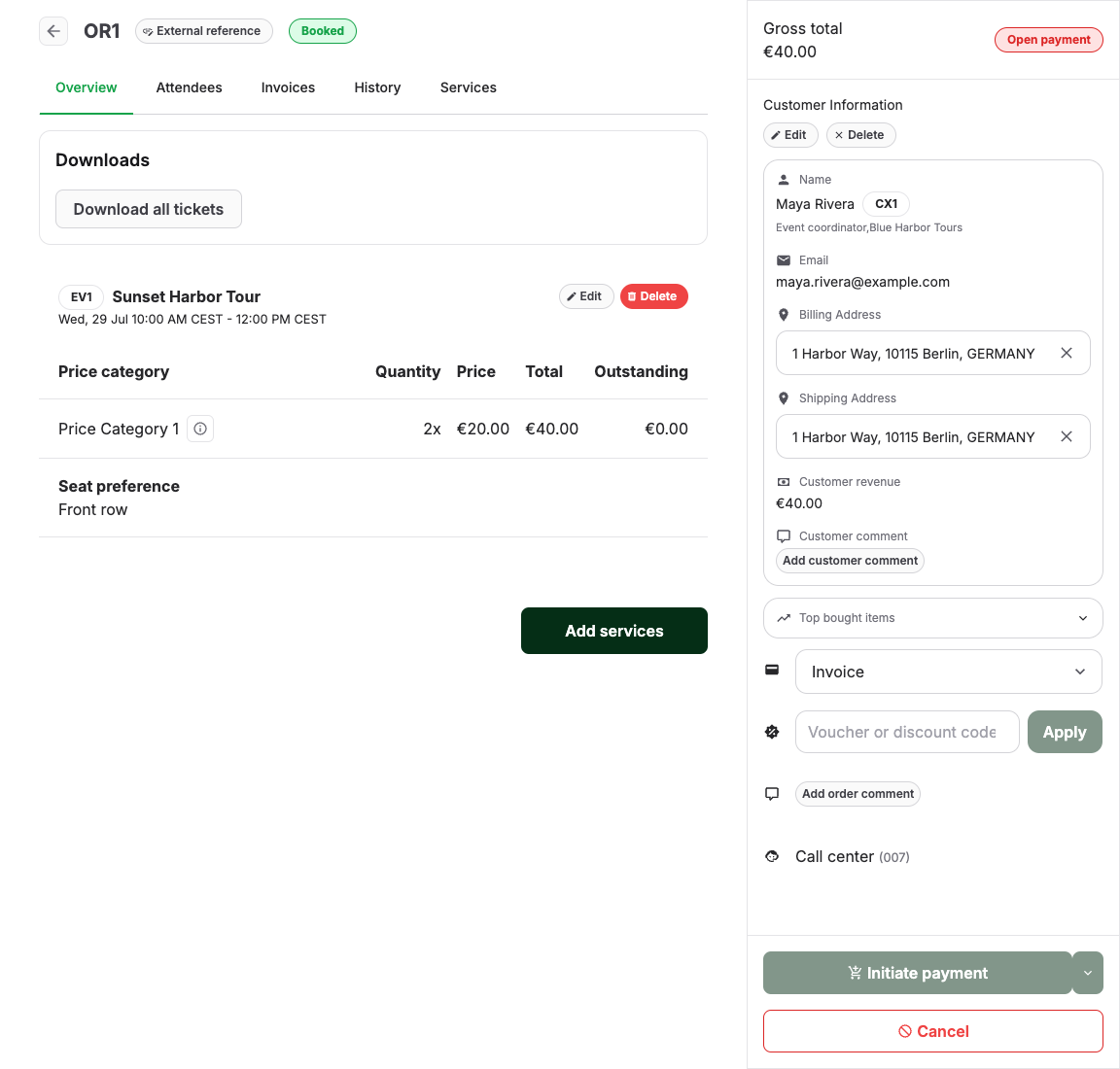
- Open the order and review the order overview.
- Check the payment state, invoice state, and open amount before sending anything.
Choose the right action
| Situation | Use this action |
|---|---|
| The order has open items and no finalized invoice | Use the available payment action on the order. |
| The order has an invoice with an open amount | Use Copy payment link on the order or Payment link on the invoice to copy a link. |
| No order email has been sent yet | Use Send payment link email for the initial KORONA Event payment request. |
| The initial email was already sent or not received | Confirm the address. If the latest order email is the payment request, use Resend last order email; KORONA Event generates a fresh link for the resent email. Alternatively, reload the order or invoice and copy the newly generated link into a separate approved message. |
| The order is already paid | Do not send a new payment link. Send confirmation or tickets if needed. |
| The order is canceled or expired | Do not send the old link. Create the correct replacement order or follow your cancellation process. |
Send or copy the link
- From the order, choose Send payment link email when the customer should receive the initial payment request from KORONA Event.
- Choose Copy payment link on the order, or Payment link on the invoice, when you need to paste the link into a separate email, support ticket, or approved message.
- Use Add order comment when your team needs an audit trail.
- Ask the customer to complete payment before the reservation deadline if one applies.
- After payment, refresh the order and confirm the payment state changed as expected.
Send payment link email sends the initial order email for this payment flow. Once an order email has already been sent, this action is no longer available. If the latest order email is the payment request, use Resend last order email; the resent email contains a newly generated link. You can also reload the order or invoice and copy a fresh link for a separate follow-up message.
Validity and unused links
Each payment link has its own expiry time. It is valid until one week after the invoice due date or one week after the link was generated, whichever is later.
If the customer does not use the link in time:
- the link no longer opens after it expires
- no payment is recorded and the open amount remains unpaid
- the link expiry alone does not change the order or invoice state
- a staff-created back-office order that is already Booked remains booked and continues to hold its capacity until staff cancel or otherwise change it
- an order that is still Reserved can expire at its separate reservation deadline and release its capacity; eligible online-checkout orders can also have separate auto-cancel deadlines
You cannot extend the same link. If the order is still valid and the invoice still requires payment, use one of these options:
- If the latest order email is the payment request, choose Resend last order email. KORONA Event renders the email again with a newly generated payment link.
- Reload or reopen the order or invoice and copy the newly generated link. Paste it into a separate approved message to the customer.
In both cases, the new link has its own expiry time. Do not reuse an old link after the order has been paid, canceled, or expired.
Expected result
The customer receives or opens a payment link for the correct open amount, completes payment through the provider, and the order and invoice update to the expected states, for example the invoice changes to Paid.
Troubleshooting
| Problem | What to check |
|---|---|
| Send payment link email is missing | Whether an order email was already sent, and the open amount, invoice state, order state, customer, and provider setup. If the latest order email is the payment request, use Resend last order email; otherwise copy a newly generated link. |
| Link opens but payment methods are missing | Provider configuration, payment method eligibility, customer country/device, and whether the method is supported for payment links. |
| Customer paid but order still looks open | Provider dashboard state, pending review, delayed payment methods, callback delays, and whether another order was paid instead. |
| Customer received multiple links | Check order history and invoices before canceling or resending. Make sure staff are not using an old support reply. |
| Link is expired | Confirm the order is still valid and the invoice still has an open amount. Resend the latest order email if it is the payment request, or reload the page and copy the newly generated link. Create a replacement order if the original order expired. |