Check membership benefits
- Last verified
- Last verified Aug 27, 2026
Use this when a customer claims a membership benefit — a member discount, a member email, or member access — and you need to confirm what their profile actually carries. A purchased product can classify a customer permanently or provide a membership that lasts only while its supporting ticket is valid. Subscriptions and bLoyal memberships are separate mechanisms.
Before you start
- Get the exact email address the customer used for the purchase in question.
- Know whether the customer group comes from Customer group after purchase, a KORONA Event subscription, or an external bLoyal system.
Find the right customer record
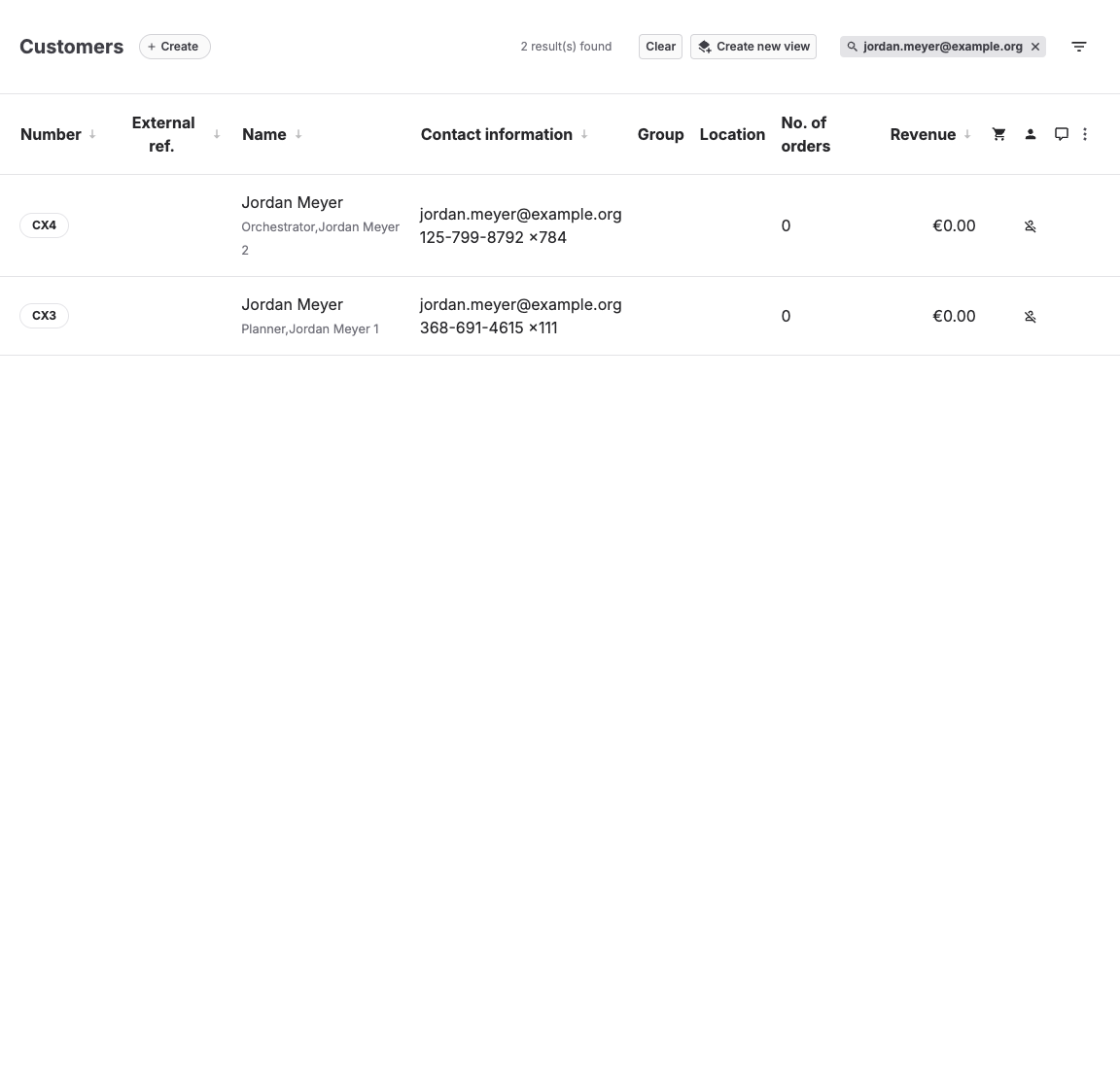
- Open Sales > Customers and search for the exact email address.
- If several records match the person, note all of them — the membership may sit on a record the customer did not use at checkout. See Clean up duplicate customer records.
Choose permanent classification or ticket validity
Open Services > Products, select the product, and use its Base settings:
- Select Customer group after purchase.
- Select a Customer group assignment duration:
- Permanent customer classification assigns the group after a qualifying booking when the customer does not already have a customer group. The group remains after any ticket expires or is cancelled. Use this for ordinary classifications such as private customer, trade customer, or another lasting category. The product does not need to create a ticket or attendance.
- Membership during ticket validity creates a managed membership benefit for the purchasing customer. The product must create an attendance and use an activating production type. If the warning appears, enable attendance creation in Capacity settings or correct the production type in KORONA and import the updated configuration.
Check ticket-backed customer-group benefits
Only products configured as Membership during ticket validity appear under Membership benefits and follow the lifecycle below.
After a qualifying booking:
- The customer group applies immediately after the qualifying purchase is booked. While KORONA Event is still matching the purchase to its authoritative ticket, the benefit appears as Awaiting ticket source.
- If KORONA Event cannot establish an authoritative ticket source within the automatic recovery window, it withdraws the provisional customer group and reports Error for support.
- Once the ticket source is attached, its validity controls the benefit's ongoing lifecycle. A cancelled ticket removes the benefit immediately. Locking or using a ticket does not remove the customer-group benefit by itself.
- Several valid tickets for the same customer group keep the benefit active until the last one ends.
- Extending a ticket before it expires prevents an interruption. A later renewal restores the benefit when its new ticket becomes valid.
- When the last supporting ticket ends, KORONA Event restores the previous or default customer group only if the group was still system-managed. A staff member's manual customer-group change is preserved.
Open the customer and select Overview > Membership benefits. The card shows the managed customer group, the KORONA synchronization state, and every supporting product with its ticket validity.
| Status | Meaning |
|---|---|
| Active | At least one supporting ticket is valid now. |
| Awaiting ticket source | The booking qualifies, but the supporting ticket is not available yet. This normally resolves automatically. |
| Expired | The final supporting ticket reached the end of its validity. |
| Revoked | The supporting ticket was cancelled or removed. |
| Conflict | Valid sources require different customer groups. KORONA Event does not choose a winner. |
| Manually overridden | A staff member selected a different customer group; automation leaves it unchanged. |
| Error | Reconciliation could not complete. The card shows the latest error for support. |
KORONA sync pending means an update is queued. KORONA sync failed shows the latest integration error; automatic retries remain scheduled.
If synchronization or reconciliation fails, the card keeps the latest error visible and, when scheduled, shows the next automatic reconciliation attempt.
If the card shows Conflict, compare the listed products and assigned customer groups. Correct the product configuration for future bookings, then cancel and reissue an incorrectly configured supporting ticket according to your normal booking workflow. Do not manually choose a temporary winner unless that manual group is the intended permanent override.
Check the customer's subscriptions
- Open the customer and select the Consents tab.
- The Subscriptions section lists each subscription with a toggle showing whether this customer is signed up. The Marketing Preferences section shows marketing consent, which scheduled member emails may require.
- The customer Overview tab also shows a Subscriptions summary and the customer's External ref. where one is set.
Subscription definitions live in Settings > Subscriptions. Each subscription stores only a Name, the checkbox text customers see, whether it Allows marketing contact, and its Type (bLoyal or Custom). A subscription by itself carries no discount — it identifies who is a member, and scheduled emails can target it.
Check bLoyal memberships
Where memberships come from bLoyal:
- Confirm the customer's External reference is set — it links the KORONA Event record to the bLoyal customer. A bLoyal-type subscription cannot be enabled on a customer without one.
- Confirm the subscription of type bLoyal is toggled on for this customer in the Consents tab.
- Check the integration in Admin > Integrations under bLoyal Integration; Import subscriptions pulls the subscription definitions from bLoyal.
Member pricing and coupons for bLoyal members are calculated by bLoyal during checkout when the customer is linked. If the link and the subscription look correct but the benefit still does not apply, continue with Integration troubleshooting checklist.
When a benefit is not applied
Work through these in order:
- Was the purchase made while logged in or with the email of the record that holds the membership?
- For a ticket-backed customer group: is Membership benefits active, and does the expected product and validity appear there?
- Is the card waiting for a ticket source, reporting a conflict, or showing a KORONA sync error?
- For a subscription: is it toggled on for that record in the Consents tab?
- For bLoyal memberships: is the External reference present and the integration healthy?
- Is the "benefit" actually a coupon or voucher rather than a membership? Then continue in A coupon, voucher, or membership does not work.
Expected result
You can state which customer record holds the membership, which source currently supports the benefit, whether KORONA received the customer group, and — for bLoyal — whether the external link exists before deciding between fixing the configuration and escalating to support.
Troubleshooting
| Problem | What to check |
|---|---|
| Subscription toggle is disabled | For bLoyal-type subscriptions, whether the customer has an External reference. |
| Benefit applied for others, not here | Duplicate customer records and which record was used at checkout. |
| Customer group ended too early | The validity and cancellation state of every source listed under Membership benefits. |
| Customer group did not end | Whether another valid source overlaps, or the group was manually overridden. |
| Different groups are listed | Fix the product for future bookings, then cancel and reissue the incorrect supporting ticket; the conflict deliberately has no winner. |
| KORONA has the old group | Check KORONA sync and its latest error. Pending and failed updates are retried automatically. |
| No subscriptions listed | Whether subscriptions are defined in Settings > Subscriptions and imported from bLoyal. |
| Member email never arrives | Marketing consent, the targeted subscriptions on the scheduled email, and the customer email address. |