Correct customer or invoice address details
- Last verified
- Last verified Oct 1, 2026
Use this when a customer reports a wrong name, email address, or billing address, or when an invoice should have used a different address.
Before you start
- Confirm you are editing the right customer record. If the same person appears more than once, read Clean up duplicate customer records first.
- Recipient corrections apply to the invoice. Saved customer and address details in KORONA Event stay unchanged. To change details for future documents, edit the customer record separately.
- Use the recipient-correction workflow only for the name, company, department, postal address, VAT ID, or Leitweg-ID. If services, quantities, prices, taxes, or totals are wrong, follow your team's financial correction or refund process instead.
- Correct the invoice to identify the actual buyer. If the wrong company was originally recorded, you can select the correct company’s contact. Changes to VAT treatment require your team’s financial correction process.
Edit the customer record
- Open Sales > Customers and open the customer.
- Select Edit in the customer header to open the edit form.
- Correct fields such as Salutation, First name, Last name, Company, Email, Telephone, Mobile, and Tax code.
- Save. A confirmation shows that the customer information was updated.
To manage addresses, open the customer's Addresses tab. There you can select Add new address, edit an existing address, and mark an address as the default with Use as default billing address or Use as default shipping address.
Choose the address used on an order
Each order stores which of the customer's addresses it uses:
- Open Sales > Orders and open the order.
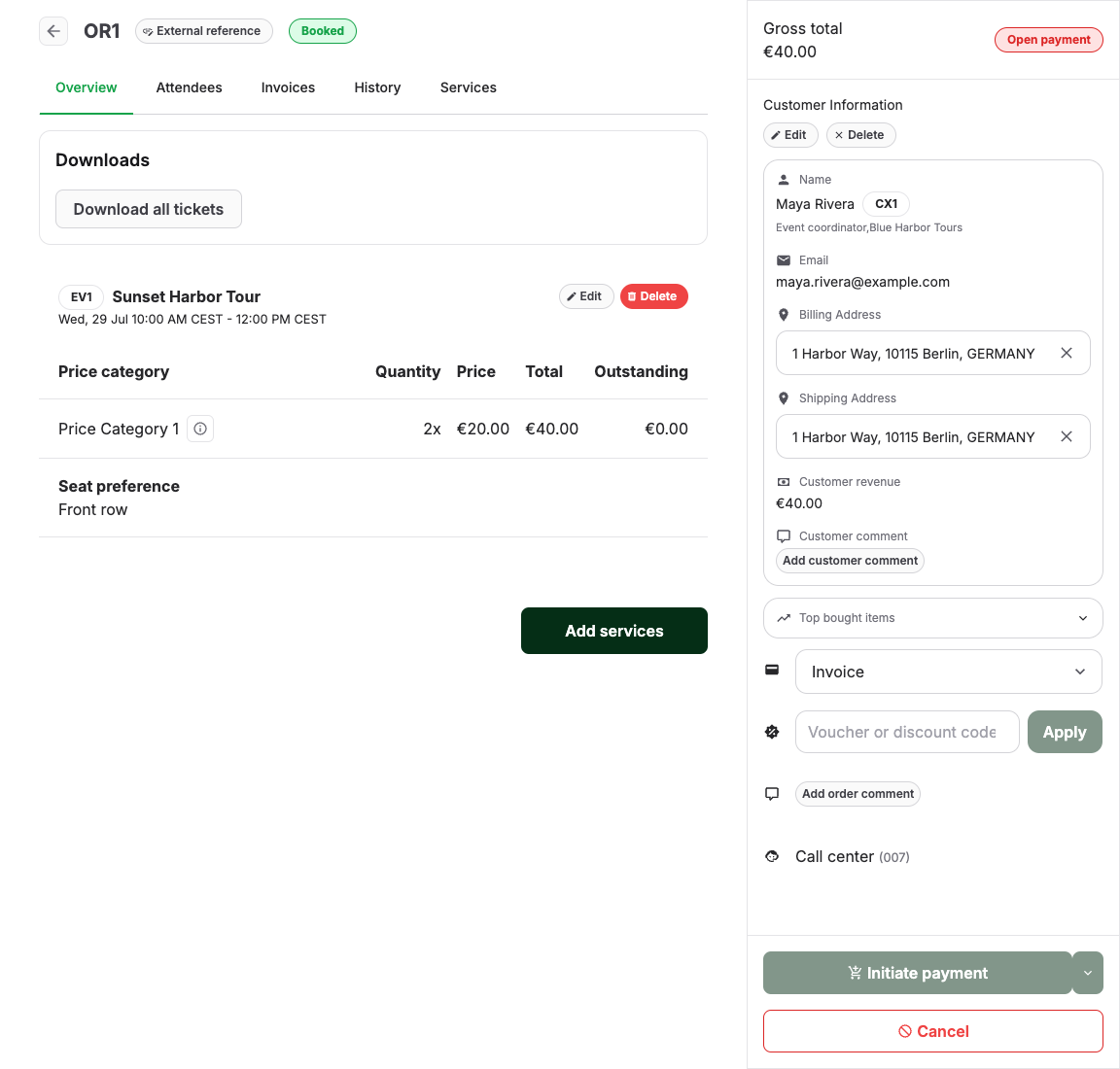
- In the Customer Information sidebar, change the address selected under Billing Address or Shipping Address.
If you edit the customer, contact person, or selected address after the order already exists, the order keeps its saved copy until you refresh it. The sidebar then shows The saved order address differs from the current customer address below the affected billing or shipping address. Review the current details and select Update order address before creating another invoice or delivery note. Repeat this for both addresses if both warnings are shown.
When an invoice is billed directly to an order's customer, KORONA Event uses that customer's default billing address if the order has none selected, including a default saved after the order was created. A billing address selected on the order takes precedence.
Correct the recipient on an existing invoice
You can issue an address-only correction without deleting and rebooking the order's services:
- Open Sales > Invoices and open the invoice.
- Open the menu next to Download invoice, then select Correct invoice recipient.
- Check Invoice customer/contact. The current recipient’s existing contact is selected initially. If a different customer should receive the invoice, select that customer's existing contact. A new customer must first be created under Customers.
- Enter the recipient name, Company, postal address, VAT ID and Leitweg-ID you want on the corrected invoice. A saved customer address can fill the fields, but is not required. You can edit the company regardless of the selected customer's account type. These entries do not overwrite the saved customer or address in KORONA Event.
The Leitweg-ID is the buyer reference for German public-sector e-invoices. For an address correction, the issued reference is retained. Selecting a different actual buyer loads their reference; if they have none, the previous buyer’s reference is removed. You can correct or clear it for this invoice.
- Enter an internal Correction reason. It is kept in the audit trail and is not printed on the customer PDF.
- Select Review correction. Review the corrected recipient and the PDF preview. You can open the preview separately with Open PDF preview. To make a change, select Edit, update the fields and review again.
- Select Issue correction.
- From the invoice page, download the latest correction while signed in and transmit it securely to the corrected recipient.
If the invoice is linked to an existing KORONA receipt, KORONA Event updates that receipt with the corrected recipient before it issues the correction document. KORONA Event also updates the selected existing KORONA customer. If the customer has no existing KORONA link, synchronize it before issuing the correction. If the customer or receipt update fails, no correction document is issued.
The correction is a new, versioned invoice PDF using your invoice template, the selected customer’s number and the recipient details you entered. It includes a reference to the original invoice. If e-invoices are enabled, the e-invoice also contains the corrected recipient details. KORONA Event preserves the original PDF and records who issued each correction and when. Services, taxes, amounts, and payments remain unchanged.
Recipient correction is not available for draft invoices. Finalize a draft first.
How company and contact names are ordered
For company customers, KORONA Event orders the company and contact names according to the country on the billing or shipping address. This is independent of the language used on the document.
- German and Australian addresses show the company before the contact person.
- US and other addresses show the contact person before the company.
- Individual customers remain person-first.
The company, contact person, department, and care-of line are each shown no more than once when they are available.
Expected result
The customer record shows the corrected details, and new emails go to the corrected address. After you select Update order address for each stale billing or shipping address, newly generated company invoices and delivery notes use the refreshed recipient details and the destination country's name order. Recipient corrections use the same ordering. If you issued a correction, the authenticated invoice page shows its staff-only document history and latest correction, while the public invoice link, original PDF, and all financial data remain unchanged. When the invoice has a linked KORONA receipt, that existing receipt also uses the corrected recipient.
Troubleshooting
| Problem | What to check |
|---|---|
| Confirmation email still went to the old email | Whether the customer record was saved before resending, and the recipient shown in the order History. |
| A new invoice shows the old address | Whether the order showed an address warning. Select Update order address before creating the next document. |
| Corrected invoice download shows the old address | Refresh the invoice page and download the newest correction version rather than Original invoice. |
| A public invoice link still shows the original | This is expected. Sign in, download the latest correction from the invoice page, and send it securely to the corrected recipient. |
| Correct invoice recipient is unavailable | Whether the invoice is still a draft or your role has permission to update invoices, contacts and addresses, and read customers, contacts and addresses. |
| The correction PDF cannot be generated | Contact your KORONA Event support contact. The correction has not been issued. |
| The linked KORONA receipt could not be updated | Retry after the KORONA connection is available. If the update continues to fail, contact your KORONA Event support contact. |
| A price, tax, or service is also wrong | Do not use an address-only correction; follow your team's financial correction or refund process. |
| Cannot edit the customer | Your role's permission to update customers. |
| Two records exist for the same customer | Do not merge manually; follow the duplicate cleanup process. |