Configure external analytics and consent
- Availability
- Beta
- Last verified
- Last verified Aug 20, 2026
Use this workflow when you need to send online ticket purchases to a customer-managed analytics platform, tag manager, marketing pixel, or other destination. KORONA Event supplies a consent-aware purchase-event contract; your team or agency supplies the consent manager, destination code, and any adapter or field transformation.
KORONA Event is the product name. toucantix_booking_event is the legacy technical namespace in its data-layer contract; copy that namespace unchanged when configuring an integration.
What is supported
| Requirement | KORONA Event support | Who completes the setup |
|---|---|---|
| External analytics or tag manager | Customer-managed HTML and JavaScript can load on KORONA Event shop, payment, and success pages, but not on an external payment provider's site. | Your team or agency installs, publishes, and maintains the provider code or container. |
| Marketing pixel or other browser destination | An event adapter can listen for purchase and call a compatible destination SDK or API after destination-specific consent. | Confirm compatibility, implement any field transformations, and configure the destination's consent controls. |
| Successful-order or thank-you-page tracking | A paid order emits purchase on the success page when analytics consent is already active. | Do not use the page URL alone; trigger the destination from the purchase event. |
| Purchase details | The purchase object contains a transaction ID, gross order value, currency, tax, applied voucher numbers, and items. Its meanings may differ from a destination's schema. | Read the payload contract and transform values before forwarding them when the destination uses different semantics. |
| Campaign attribution | Campaign parameters and ad click identifiers from the shop landing URL can accompany consent-managed events. | Preserve the parameters when linking into the shop, then map them only where the destination supports that use. |
| Worked Google setup | The documented example covers GTM, GA4, Google Ads purchase conversions, Google Consent Mode, and Google-specific attribution controls. | Create and configure the Google accounts, tags, consent behavior, and required transformations. |
| Consent banner | Custom consent-manager HTML and JavaScript can be added to every shop page. | Select, license, configure, and legally approve the consent manager. KORONA Event does not provide a built-in cookie banner. |
| Server-side settled-order notification | The Order Settled webhook reports settled order facts. | Build and operate the receiving service. The webhook does not include browser campaign or ad-click identifiers. |
KORONA Event does not provide a native or managed connection to a specific analytics platform, tag manager, pixel, marketing destination, or consent-management platform. Custom HTML and JavaScript snippets and the purchase-event contract are extension points. Another provider can use them only when your customer-managed snippet or adapter can consume the documented contract and meet that provider's technical, consent, and data requirements.
Before you start
Prepare:
- the destination account, SDK, container, pixel, or API documentation
- a field map from the documented purchase contract to the destination's required meanings
- a consent manager that can restore the visitor's current choice and call JavaScript when that choice changes
- campaign-link and cross-domain requirements for the selected destination
- legal approval for the consent categories, retention, and destinations
- a paid test checkout and access to the destination platform's preview or diagnostics view
For the Google example, also prepare the GTM container ID or approved gtag code, the GA4 property, the Google Ads conversion action, Google Ads auto-tagging, a site-wide Google tag or Conversion Linker, and any required cross-domain linking.
Agree who owns each layer before launch: KORONA Event produces the purchase event, the consent manager decides whether optional tracking may run, your snippet or adapter transforms and routes the event, and the external destination records it. Your organization remains responsible for provider compatibility and account configuration.
1. Choose the analytics mode
The modes differ in what KORONA Event itself collects, what reaches your data layer, and whether campaign parameters are captured:
| Mode | Internal KORONA Event collection | Customer data layer and campaign capture |
|---|---|---|
| Privacy-preserving | Records sanitized shop events without visitor, contact, order, invoice, session, or campaign identifiers. Events can still include shop and page context plus commerce measures. | No KORONA Event booking or ecommerce events reach window.dataLayer. Campaign and click parameters are not captured or stored. This is the default. |
| Consent-managed | Before analytics consent, records the same sanitized events as Privacy-preserving. With live analytics consent, records the richer consent-managed analytics context. | Before analytics consent, nothing reaches window.dataLayer and campaign parameters are not captured. With live consent, ecommerce events and campaign context are added. |
| Disabled | Does not create KORONA Event shop analytics events. | No KORONA Event analytics events reach window.dataLayer, and campaign or click parameters are not captured or stored. |
- In the back office, open Shops and select the shop.
- Open Checkout.
- Under Analytics, set Mode to Consent-managed for the setup in this article.
- Save the shop.
2. Add the consent manager and tags
- Open Code snippets for the shop.
- Under Custom HTML and JavaScript snippets, add the consent bridge and consent manager with Placement set to Top of
<head>. Make sure the bridge runs before the consent manager invokes its reporting callback. They must restore consent before a paid order reaches the success event. - Add GTM or other analytics code as a separate snippet. Use Top of
<head>when the provider requires early initialization and your consent manager blocks it correctly. Use Start of<body>for optional scripts that can wait until the page has loaded. - Keep dependent snippets in the required order and save the shop.
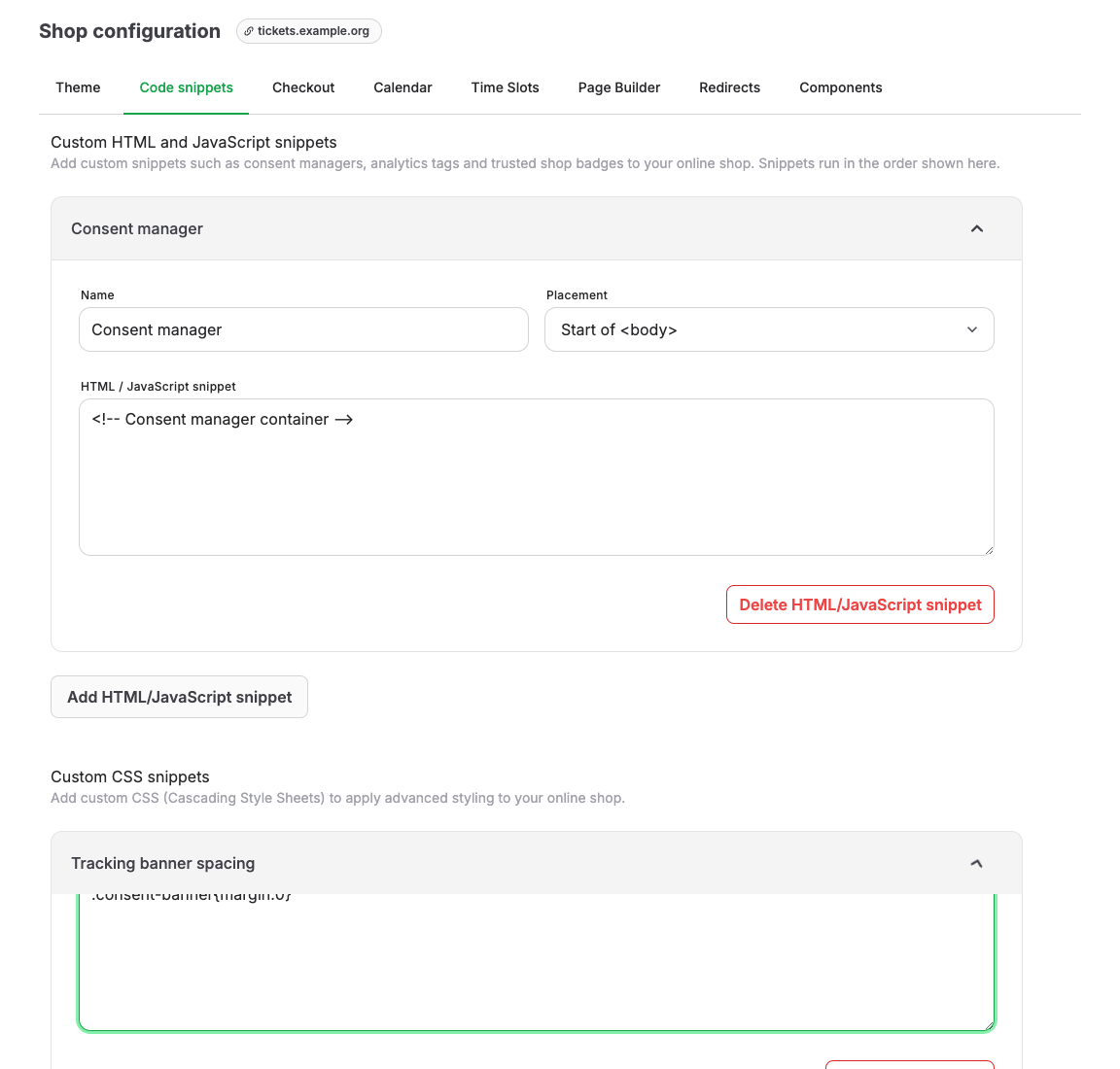
Body-positioned snippets start after the initial page load, when the browser is idle. An ordered external body script that does not load within 10 seconds is skipped so later snippets can continue. Do not place the consent-restoration step only in a delayed body snippet: the paid success event may occur first.
Connect the consent manager to KORONA Event
On every full shop, payment, or success-page load, your consent manager must read its saved decision and report the current state again. It must also report later acceptance, rejection, or withdrawal. KORONA Event does not persist the visitor's consent-manager decision for you.
The shop exposes either of these equivalent controller names:
window.ShopBookingAnalytics;
window.__SHOP_BOOKING_ANALYTICS__;
The following vendor-neutral bridge waits briefly for that controller. Add it near the start of the Top of <head> snippets, then call window.reportKoronaEventConsent from your consent manager's initial-state and change callbacks:
<script>
  (function () {
    var latestChoice = { analytics: false, marketing: false };
    var retryStartedAt = 0;
    var retryTimer = null;

    function warn(message, error) {
      if (window.console && typeof window.console.warn === "function") {
        window.console.warn(message, error || "");
      }
    }

    function applyChoice() {
      var analytics = window.ShopBookingAnalytics || window.__SHOP_BOOKING_ANALYTICS__;

      if (analytics && typeof analytics.setConsent === "function") {
        try {
          analytics.setConsent(latestChoice);
        } catch (error) {
          warn("[KORONA Event analytics] Could not apply consent.", error);
        }
        retryTimer = null;
        return;
      }

      if (Date.now() - retryStartedAt < 10000) {
        retryTimer = window.setTimeout(applyChoice, 50);
      } else {
        retryTimer = null;
        warn("[KORONA Event analytics] Consent controller did not become available within 10 seconds.");
      }
    }

    window.reportKoronaEventConsent = function reportKoronaEventConsent(choice) {
      choice = choice || {};
      latestChoice = {
        analytics: choice.analytics === true,
        marketing: choice.marketing === true,
      };
      retryStartedAt = Date.now();

      if (retryTimer === null) {
        applyChoice();
      }
    };
  })();
</script>
Adapt the callback names to your consent manager. The calls themselves should follow this pattern:
// Restore or grant analytics and marketing consent.
window.reportKoronaEventConsent({ analytics: true, marketing: true });

// Reject or withdraw optional analytics and marketing consent.
window.reportKoronaEventConsent({ analytics: false, marketing: false });
Use the actual categories approved for your organization. Do not copy the true example as a default consent choice.
The analytics value controls KORONA Event's consent-managed storage and data-layer events. A purchase can therefore reach window.dataLayer when analytics is true even if marketing is false. The marketing value does not replace the advertising-consent controls required by your consent manager, GTM, Google Consent Mode, Google Ads, or applicable law. Configure those controls separately so advertising tags do not fire with analytics-only consent.
If a purchase occurred while analytics consent was denied, granting consent and reloading the success page can emit it when the saved decision is restored before the invoice request completes: no consent-managed browser ledger was written for the denied event. If a consented purchase was already emitted and recorded in that ledger, a reload is deduplicated. Do not depend on a success-page reload as a consent or conversion-recovery workflow.
Reporting analytics: false stops new consent-managed data-layer events and storage use. It does not delete analytics context already stored in the visitor's browser, remove an event already pushed to window.dataLayer, or recall data that a tag already forwarded to or that is held by GA4, Google Ads, or another provider. Your organization owns the CMP and tag cleanup behavior, storage lifetime, and any provider-side retention or deletion process required by its approved consent design.
The shop does not dispatch a public controller-ready event. The bounded polling in the bridge is therefore the primary pattern. An integration that is known to run after the shop controller is ready can instead dispatch this browser event:
window.dispatchEvent(
  new CustomEvent("shop-booking-analytics:consent-update", {
    detail: { analytics: true, marketing: true },
  }),
);
Google example: configure Consent Mode separately
The KORONA Event consent bridge and Google Consent Mode control different layers. The bridge controls when KORONA Event may store analytics context and add ecommerce events to window.dataLayer. Google Consent Mode controls how Google tags behave. Connect both layers to the same consent manager, using the categories and defaults approved for your organization.
If you use GTM:
- Prefer your consent-management platform's template from the Community Template Gallery, where available.
- Run the consent template on Consent Initialization - All Pages so it sets defaults before tags that send measurement data.
- If you create a custom GTM template, use the Tag Manager consent APIs
setDefaultConsentStateandupdateConsentState. Do not substitute queuedgtag('consent', ...)commands inside that template. - Update all applicable consent types whenever the visitor changes a choice, and restore the saved choice on subsequent page loads.
If you use the Google tag directly without GTM, place a denied default before the Google tag loader and before any config or event command:
<script>
  window.dataLayer = window.dataLayer || [];
  window.gtag =
    window.gtag ||
    function () {
      window.dataLayer.push(arguments);
    };

  window.gtag("consent", "default", {
    analytics_storage: "denied",
    ad_storage: "denied",
    ad_user_data: "denied",
    ad_personalization: "denied",
  });
</script>
Call an update from the consent manager as soon as the visitor saves or changes a choice. Use separate values so the mapping can follow your approved categories:
<script>
  window.updateGoogleConsent = function updateGoogleConsent(choice) {
    window.gtag("consent", "update", {
      analytics_storage: choice.analyticsStorage === true ? "granted" : "denied",
      ad_storage: choice.adStorage === true ? "granted" : "denied",
      ad_user_data: choice.adUserData === true ? "granted" : "denied",
      ad_personalization: choice.adPersonalization === true ? "granted" : "denied",
    });
  };
</script>
Google Consent Mode does not save the visitor's choice for you. On every full page load, set the default first, then have the consent manager read its saved choice and call the update as soon as that choice is known. Send another update whenever the visitor changes or withdraws consent.
Do not treat the property names in this example as a universal category mapping. Your organization must decide how its legally approved CMP categories map to analytics_storage, ad_storage, ad_user_data, and ad_personalization. It must also choose between Basic Consent Mode, which blocks Google tags before consent, and Advanced Consent Mode, which can load Google tags with denied consent states. That choice does not change the KORONA Event rule: purchase reaches window.dataLayer only after the bridge receives analytics: true.
See Google's consent mode implementation guide and GTM consent-template guide for the provider-specific implementation details.
3. Connect an external destination
Use this provider-neutral workflow for an analytics platform, tag manager, pixel, or other browser destination:
- Read the purchase payload contract, including KORONA Event's meanings for value, tax, vouchers, items, and campaign fields.
- Create a customer-managed snippet or event adapter that listens for
purchase, transforms the fields to the destination's semantics, and then calls the compatible destination SDK or API. - Allow that destination call only after the destination-specific consent required by your approved CMP design. KORONA Event's
analytics: truecontrols the purchase event, but does not grant consent to every external destination. - Use the transaction ID for destination-side deduplication where supported, and define how your integration handles any lifecycle events that the purchase payload does not provide.
- Validate a paid purchase with accepted, rejected, and later withdrawn consent. Rejection and withdrawal must prevent future destination calls; withdrawal cannot recall data already sent.
The destination code, adapter, transformations, consent mapping, and account configuration remain customer-managed. This workflow does not imply native compatibility with a particular provider.
Worked example: GTM, GA4, and Google Ads
The following recipe uses GTM to route one purchase to GA4 and Google Ads. If you use another destination, implement the provider-neutral workflow above with that provider's supported SDK or API instead.
In your GTM container:
Create data-layer variables for the fields your destination needs:
| Purpose | Data-layer path |
|---|---|
| Event-instance ID | event_id |
| Purchase contract version | ecommerce.contract_version |
| Transaction ID | ecommerce.transaction_id |
| Currency-aware gross order value | ecommerce.gross_value |
| Legacy gross order value | ecommerce.value |
| Tax-exclusive merchandise value | ecommerce.items_net_value |
| Tax-exclusive shipping | ecommerce.shipping |
| Currency | ecommerce.currency |
| Purchased items | ecommerce.items |
| Currency-aware total tax | ecommerce.total_tax |
| Payment method | ecommerce.payment_method |
| Applied voucher number(s), comma-separated | ecommerce.coupon |
| First item category | ecommerce.items.0.item_category |
| First item secondary category | ecommerce.items.0.item_category2 |
| Captured Google Ads click ID, for diagnostics or custom integrations | toucantix_booking_event.gclid |
| Campaign source | toucantix_booking_event.utm_source |
| Campaign medium | toucantix_booking_event.utm_medium |
| Campaign name | toucantix_booking_event.utm_campaign |
| Campaign term | toucantix_booking_event.utm_term |
| Campaign content | toucantix_booking_event.utm_content |
| Meta click ID | toucantix_booking_event.fbclid |
| Campaign ID | toucantix_booking_event.campaign_id |
| Placement ID | toucantix_booking_event.placement_id |
For item-level fields, most integrations should pass the complete ecommerce.items array. The .0. paths above address only the first item and are shown to identify where those fields live.
- Create a Custom Event trigger whose event name is exactly
purchase. - For GA4, create a GA4 event tag for
purchase. Transform or omit the monetary and voucher fields as described below before mapping them to GA4. - For Google Ads, create a Google Ads conversion tag for the purchase conversion action and map the transaction ID, currency, and intended conversion value.
ecommerce.gross_valueis the currency-aware gross order value; use it directly only when the Ads conversion action should report that gross value. - Apply the
purchasetrigger and your consent requirements to each destination tag. - Publish the GTM container only after the accepted- and rejected-consent tests pass.
A bare GA4 or Google Ads base tag does not automatically translate the KORONA Event purchase object into a recorded conversion. If you do not use GTM, your custom code must listen for the event, apply any destination-specific transformations, and call the destination API with the resulting values.
Transform purchase values and vouchers for GA4
The KORONA Event object is GA4-shaped, not a ready-to-send GA4 purchase. Its source values follow KORONA Event commerce semantics:
ecommerce.gross_valueis the currency-aware gross order total. The legacyecommerce.valueretains its historical two-decimal scaling for compatibility.- Each item's
priceis the configured unit price, or the item's gross total divided by quantity when no configured unit price is available. It can therefore include tax. ecommerce.total_taxis the currency-aware, separately calculated tax total. The legacyecommerce.taxretains its historical two-decimal scaling.- Each item's
unit_net_valueis the settled, tax-exclusive unit value after line-item discounts. Itsnet_value,gross_value, andtaxfields are the corresponding line totals. ecommerce.items_net_valueis the sum of the settled, tax-exclusive non-shipping line totals.ecommerce.shippingis the settled, tax-exclusive shipping amount.shipping_gross_valueandshipping_taxprovide its gross and tax amounts.- Contract-v2 fiscal fields use the currency's major unit. The legacy
value,tax, and itempricefields still divide minor units by 100, so they are correctly scaled only for currencies with two fraction digits.tax_rateis a numeric percentage, so19means 19%, andincludedstates whether that tax component was included in the configured price.
GA4 requires purchase value to equal the sum of price * quantity across the submitted items, excluding tax and shipping. For a version 2 KORONA Event purchase, map items_net_value to GA4 value, shipping to GA4 shipping, and total_tax to GA4 tax. Exclude items with is_shipping: true from the GA4 items array because their value is already represented by shipping. For each remaining item with a nonzero settled_quantity, map unit_net_value to GA4 item price and settled_quantity to GA4 item quantity. A component-only merchandise item has settled_quantity: 0, unit_net_value: null, and a nonzero net_value; map its complete net_value to GA4 item price and use 1 as the GA4 item quantity. This synthetic quantity exists only in the destination adapter and does not change the authoritative KORONA Event settled_quantity. Do not map the legacy gross value, legacy tax, legacy item price, or legacy item quantity directly to GA4 unless those are deliberately the values your destination requires.
ecommerce.coupon contains the number of each applied or redeemed voucher, joined with commas when more than one voucher is present. If a voucher has no number, its name can be used as a fallback. Applied promotion or discount codes are not exposed in this payload. Map this value to GA4 coupon only when your organization intentionally reports voucher redemption as a promotion; otherwise omit or transform it.
These GA4 rules do not determine the value sent to a Google Ads conversion action. Configure the Ads value separately according to your advertising reporting and bidding requirements.
See Google's official purchase event specification for GA4 parameter semantics.
Preserve Google Ads click attribution
For a standard Google Ads website conversion, the conversion tag uses click information stored by the Google tag or Conversion Linker. Configure that attribution layer in addition to the purchase trigger:
- Run the Google tag on every applicable landing and conversion page, in accordance with your chosen consent mode. If your GTM container already loads a Google tag on every page, a separate Conversion Linker is not normally required.
- If the setup does not provide the site-wide Google tag behavior, create a Conversion Linker tag and fire it with an All Pages trigger or the applicable landing- and conversion-page triggers, subject to the same consent requirements.
- If the marketing site and online shop use different domains, configure cross-domain linking for both domains. The source must decorate links to the shop and the destination must accept the linker parameter. Preserving a raw
gclidin the URL alone does not replace this setup. - Keep the standard Google Ads conversion tag mapped to
ecommerce.transaction_id,ecommerce.currency, and the intended conversion value. Useecommerce.gross_valuewhen the Ads conversion action should report the currency-aware gross value.
Do not map toucantix_booking_event.gclid into the standard Google Ads website conversion tag. That field is useful for diagnostics or a separately designed custom or server-side integration; the standard website tag associates the conversion through the Google tag or Conversion Linker state.
See Google's Conversion Linker guidance for the current tag and cross-domain options.
Purchase payload contract
KORONA Event clears the previous ecommerce object, then pushes the purchase. This simplified example shows the beta fields currently intended for customer-managed tags:
window.dataLayer.push({ ecommerce: null });
window.dataLayer.push({
  event: "purchase",
  event_id: "event-id",
  ecommerce: {
    contract_version: 2,
    transaction_id: "INV-10042",
    value: 35.7,
    gross_value: 35.7,
    currency: "EUR",
    tax: 5.7,
    total_tax: 5.7,
    items_net_value: 25,
    shipping: 5,
    shipping_gross_value: 5.95,
    shipping_tax: 0.95,
    coupon: "VOUCHER-10042",
    payment_method: "card",
    items: [
      {
        item_id: "adult-ticket",
        item_name: "Adult",
        item_category: "ticket",
        item_category2: "event",
        price: 29.75,
        quantity: 1,
        settled_quantity: 1,
        unit_gross_value: 29.75,
        unit_net_value: 25,
        gross_value: 29.75,
        net_value: 25,
        tax: 4.75,
        tax_breakdown: [{ tax_rate: 19, tax_value: 4.75, included: true }],
        is_shipping: false,
      },
    ],
  },
  toucantix_booking_event: {
    event_name: "purchase",
    utm_source: "google",
    utm_medium: "cpc",
    utm_campaign: "summer-tickets",
    gclid: "example-click-id",
  },
});
The real event can contain more fields and null values. Treat the documented paths above as the KORONA Event beta integration contract rather than copying the sample values or assuming they already meet another provider's semantics. The contract_version identifies the documented purchase shape; fields can still be added compatibly during beta. Re-test your adapter after KORONA Event updates.
event_ididentifies one emitted event instance. It is generated anew and is not a stable purchase-deduplication key; usetransaction_idfor purchase deduplication.transaction_iduses the invoice number when available and falls back to the order number.contract_version: 2identifies the additive fiscal-field contract. The establishedvalue, itemprice, and itemquantitymeanings are unchanged so existing consumers can ignore the new fields.gross_valueandtotal_taxare the currency-aware contract-v2 gross and tax totals. The legacyvalueandtaxfields retain their historical minor-units-divided-by-100 scaling for compatibility; use them only when that legacy scaling is intentional.payment_methoddescribes the KORONA Event payment method when available.itemscontains the purchased ticket, product, and shipping rows. When one compound pricing contains both shipping and non-shipping settled lines, it produces a separate item row for each classification. These rows retain the same legacy item identity. One row, preferably the non-shipping row, carries the legacypriceand current request-pricingquantity; additional rows useprice: nullandquantity: 0so consumers that ignore contract-v2 fields do not duplicate the legacy item value. A settled invoice line that cannot be matched to a purchase-pricing row is emitted as a standalone fiscal item. It uses the invoice-item ID and translated line name when available, has legacyprice: nullandquantity: 0, and retains its authoritative contract-v2 fiscal fields. Include these standalone items in destination item mappings so their line totals reconcile withitems_net_valueor the shipping aggregates. Useis_shippingand the contract-v2 fiscal fields instead of assuming thatitem_idis unique within the array. The legacypriceremains the configured unit price or a gross-derived fallback and can differ from the settled fiscal value after discounts.item_categoryis a fixed KORONA Event offer classification such asticket,product,voucher,membership,donation,fee, orservice.item_category2is the normalized offer subtype, such asevent,admission, or the matching non-ticket classification. These are not customer-configured catalogue categories.settled_quantityis the sum of the matched settled invoice-line quantities for the purchased pricing. Separately invoiced sub-product component rows contribute to the matching fiscal totals but do not increase this quantity. The legacyquantityremains the current request-pricing quantity.unit_gross_valueandunit_net_valueare the settled line totals divided bysettled_quantity; a shipping or merchandise bucket that contains only component rows hassettled_quantity: 0andnullunit values. When a destination requires unit price multiplied by quantity, represent a component-only merchandise bucket with its completenet_valueas the destination price and a synthetic destination quantity of1; do not change the KORONA Eventsettled_quantity.gross_value,net_value, and itemtaxremain the authoritative settled line totals after line-item discounts. Net excludes both included and additional tax; gross includes both.- A browser unit value can contain fractions smaller than the currency's normal minor unit when a line total does not divide evenly by quantity. Use the line totals for exact reconciliation.
tax_breakdowngroups the settled tax values by exact tax rate andincludedstatus for each purchase item. When more than one settled invoice row belongs to the same purchase item, their values are combined without rounding away invoice minor units. Do not recalculate mixed 7% and 19% tax from an average rate.is_shippingidentifies rows that used the configured shipping article when the settled line was created. Later shipping-article configuration changes do not reclassify these snapshots. Lines that existed before this field was introduced were classified using the shipping article configured during the upgrade, so their classification might not reflect an earlier configuration.items_net_valueexcludes shipping rows;shipping,shipping_gross_value, andshipping_taxaggregate them separately.- Vouchers, account transactions, and order-level adjustments are not distributed across line-item fiscal fields. Use
couponto identify applied vouchers and keep the currency-aware gross ordergross_valuewhen reconciling the complete order. - Fiscal fields can be missing or
nullwhen no settled invoice data is available. Branch oncontract_versionor accept missing fields during a gradual rollout. couponcontains applied voucher numbers, not applied promotion or discount codes. Multiple vouchers are comma-separated.toucantix_booking_eventcan expose all captured campaign fields:utm_source,utm_medium,utm_campaign,utm_term,utm_content,gclid,fbclid,campaign_id, andplacement_id. A field can benullwhen it was not captured.- KORONA Event emits the browser purchase when a paid order reaches the success page with live analytics consent.
- Repeated consent-managed purchases are deduplicated by
transaction_idin memory and, on a best-effort basis, in the visitor's local-storage ledgertoucantix.booking_analytics.purchase_ledger. When browser storage is readable and writable, the ledger has no time-based expiry and retains the 100 most recent transaction IDs. Blocked storage, a quota or malformed-ledger error, cleared site data, exceeding that limit, another browser or device, or a duplicate destination trigger can still create duplicates. Without usable analytics storage, only the page runtime's in-memory deduplication is available. - Pending or failed payments do not emit
purchase. Refunds and cancellations do not emit a compensating ecommerce event to the customer data layer.
4. Preserve campaign attribution
The online shop reads these values from the landing-page address while analytics consent is active:
utm_source,utm_medium,utm_campaign,utm_term, andutm_contentgclidandfbclidcampaign_idandplacement_id
For a direct Google Ads link into the shop, keep Google Ads auto-tagging enabled if your approved setup uses gclid, or add the UTM parameters required by your reporting. For a campaign that first lands on another website, that website must preserve the required parameters when it links or redirects into the shop. KORONA Event cannot recover a click identifier that is removed before the visitor reaches the shop.
Campaign context is stored and added to rich booking events only after the visitor grants analytics consent. If the visitor navigates away from the original campaign URL before granting consent, the original parameters may not be available for the later purchase.
For a friendly campaign URL or direct offer link, see Add deep links from a marketing page.
5. Test the complete setup
Use a test conversion action or analytics property when your provider supports one.
- Open the exact campaign link in a clean browser session.
- In GTM Preview or an equivalent debug view, confirm that the consent manager sets Google consent defaults before measurement and that the KORONA Event bridge reports the current choice before checkout events.
- Reject optional consent. Using your approved test-payment process, complete a paid checkout and confirm that no KORONA Event
purchaseappears inwindow.dataLayer. Confirm that Google tags follow the basic or advanced consent behavior your organization selected and do not use consent-dependent storage or advertising features while the relevant states are denied. - Start a new clean session, accept the approved analytics and marketing choices, and complete a paid test checkout.
- On the success page, confirm one
purchaseevent with the expected transaction ID, gross value, currency, fiscal item fields, and shipping values. For mixed tax rates, confirm each line'stax_breakdownseparately. - Confirm that the GA4 and Google Ads tags fire once and that the destination diagnostics receive the test event. Verify that GA4 receives
items_net_valueas its purchase value, the transformed price and quantity for each merchandise item—including thenet_valueand synthetic quantity1fallback for component-only merchandise—shippingas GA4shipping, andtotal_taxas GA4tax, while Google Ads receives the separately configured conversion value. - Use Tag Assistant or the equivalent preview to confirm that the Google tag or applicable Conversion Linker is active on the campaign landing page and success page. When domains differ, confirm that cross-domain links carry the linker parameter and the shop accepts it.
- Repeat the accepted-consent checkout on a mobile viewport and after a payment-provider redirect when that provider leaves and returns to the shop.
The paid order in KORONA Event and the destination event should use the same invoice number as transaction_id when an invoice number is available; otherwise the payload falls back to the order number. Do not configure a separate page-view conversion on the success URL; it can count refreshes without the ecommerce payload.
Server-side alternative
Use the Order Settled webhook when an external system needs an authoritative notification that an order became settled. Its payload includes the order number, payment state and method, currency, gross, net, tax, shipping, voucher, and line-item fiscal values.
The webhook is not a ready-made Google Ads or GA4 integration. It does not contain browser UTM parameters, gclid, or fbclid, so it cannot by itself distinguish purchases from advertising campaigns or upload Google offline conversions. A customer-owned server-side integration must obtain any legally permitted click or session identifier separately, join it to the settled order, transform the documented fiscal fields for its destination, deduplicate deliveries, and send the destination request.
Troubleshooting
| Problem | What to check |
|---|---|
No purchase in window.dataLayer | Mode is Consent-managed, the success page has a paid order, and the consent bridge reported analytics: true before the purchase event. |
| Bridge reported consent, but the controller never appeared | Check the browser console for the bridge's 10-second warning, confirm the bridge runs on the KORONA Event shop rather than an external payment-provider page, and verify that no content-security or JavaScript error stopped shop initialization. |
purchase exists but GA4 or Google Ads receives nothing | GTM container publication, the exact purchase Custom Event trigger, destination tag configuration, field mappings, Google consent states, and destination consent requirements. |
| GA4 revenue does not match the intended item revenue | Confirm that the adapter receives contract_version: 2, maps items_net_value, removes is_shipping rows from GA4 items, and maps shipping separately. For a component-only merchandise item with settled_quantity: 0, confirm that the adapter maps its complete net_value as price with a synthetic quantity of 1. Check that applied voucher numbers were not treated as GA4 promotion codes unintentionally. |
| GTM loads before consent | Consent-manager blocking rules, snippet order, and whether the GTM tag has the required consent checks. Analytics mode alone does not block the GTM snippet. |
Campaign or gclid is missing | The parameter reached the shop landing URL and analytics consent was active before the campaign context needed to be stored. |
| Google Ads records a conversion without campaign attribution | The site-wide Google tag or applicable Conversion Linker runs on landing and conversion pages, has the required consent, and uses cross-domain linking when the marketing site and shop use different domains. Do not pass the diagnostic toucantix_booking_event.gclid field to the standard website conversion tag. |
| Conversion fires twice | A second page-view trigger, more than one destination tag, repeated GTM containers, cleared browser storage, or testing from another browser or device. |
| Tracking works in the shop but not after payment | The consent manager restored its current choice on the payment or success-page load and reported it through the consent bridge before purchase. |
| Consent banner covers checkout controls | Adjust the consent-manager layout for small screens without using custom CSS that hides checkout actions. |